Support
You will find support information below for the Continuous Glucose Monitor (CGM) mobile application and sensor.
Applying your CGM sensor
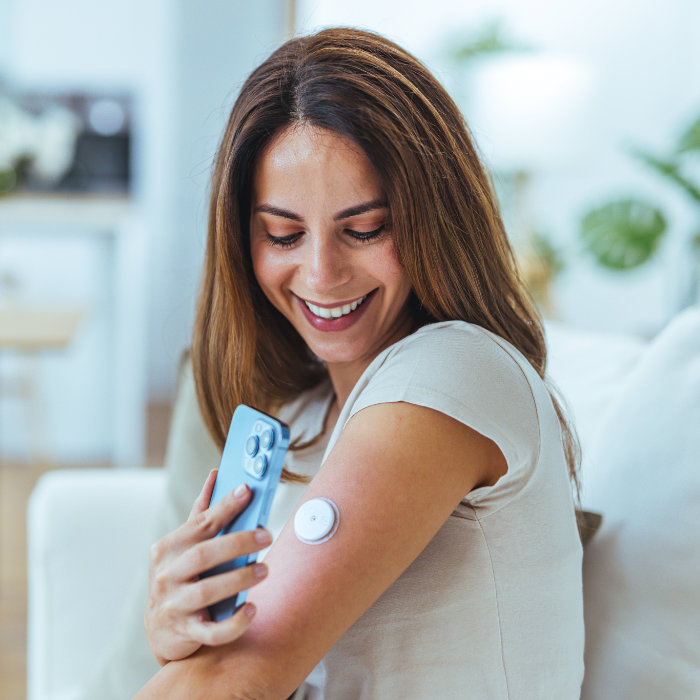
For our plans which included a sensor, during our initial meetings we will apply the supplied CGM sensor for you.
Removing your CGM sensor
After the plan has finished you can simply remove the CGM sensor like removing a bandaid and dispose of the sensor.
Setting your CGM Sensor Alarms
Upon our initial meeting we will set the alarms for you and explain why we suggest you have them set.
Scanning iwth the CGM mobile App
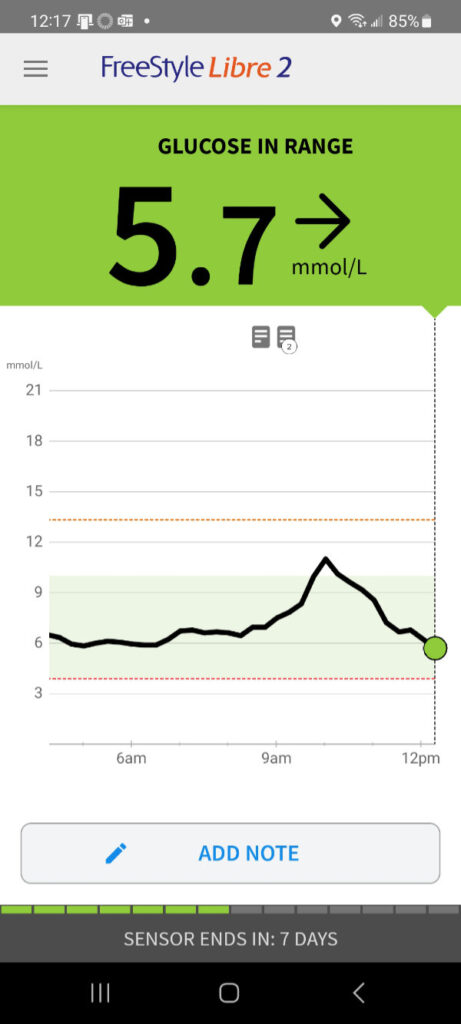
You can scan your CGM on your arm with your mobile device and CGM app. This will put an entry into your daily log. All your readings data is captured every minute of the day as long is there is a connection to the app or a scan has been made within 8 hours from the last scan.
Taking Notes with the CGM mobile App
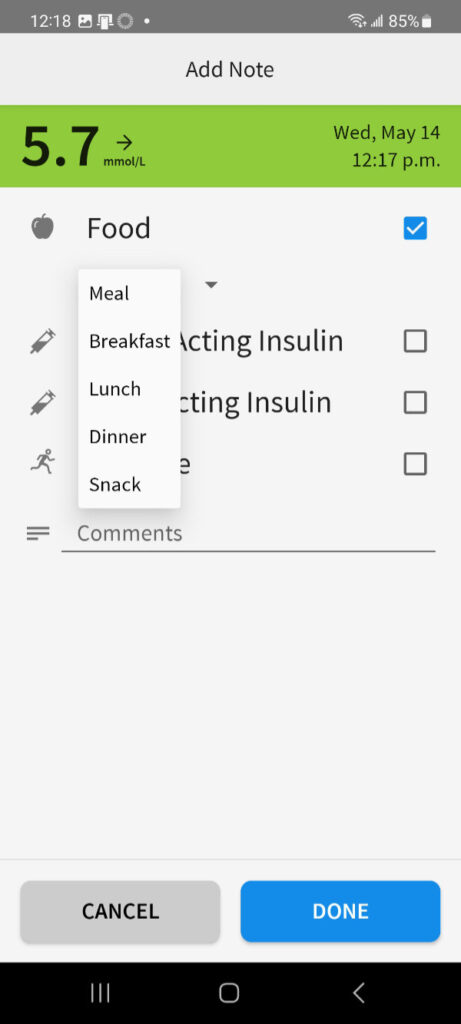
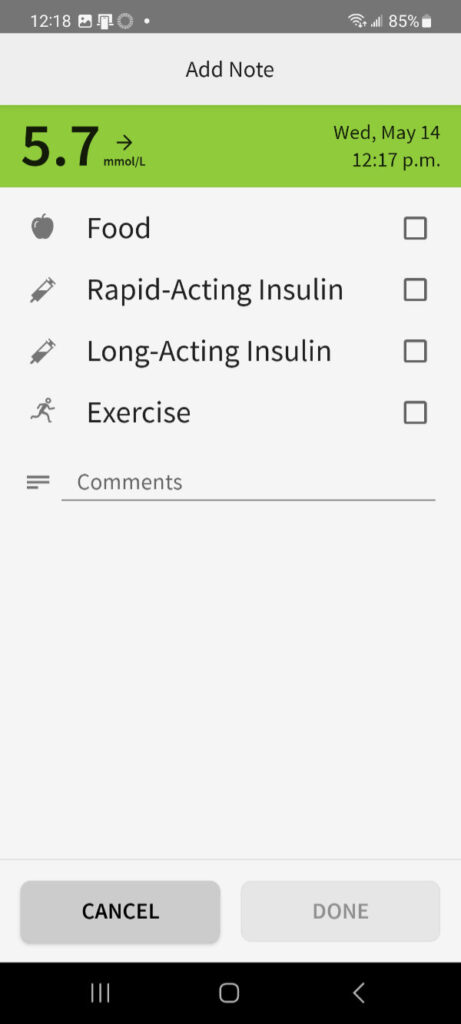
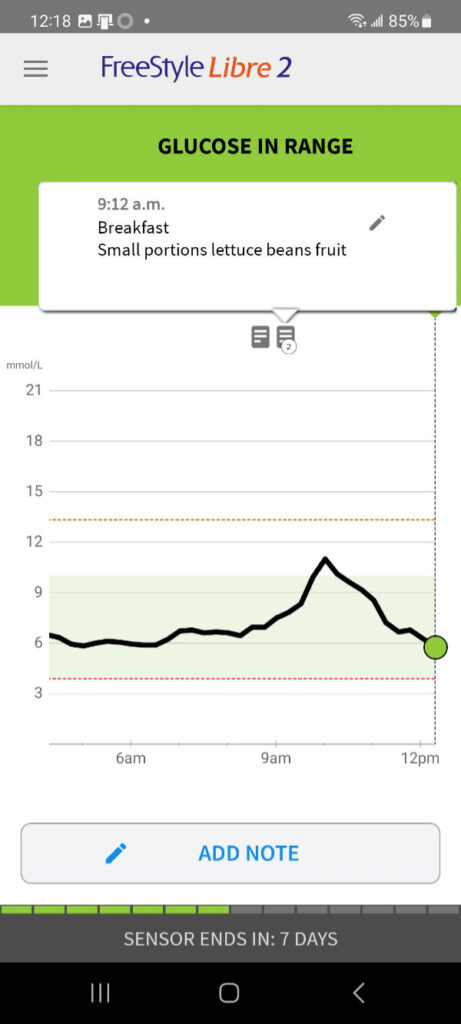
When you are on the main screen of the app, you will see and ADD NOTE button. This enables you to keep notes associated to that time in your sugar graph. You can select a category or simply add a comment or both. Once you click DONE your note will be saved in your timeline and log. You review the note and edit it if you would like simply by clicking on it in your timeline graph or in your log found under the menu options.
Reviewing the log with the CGM mobile App
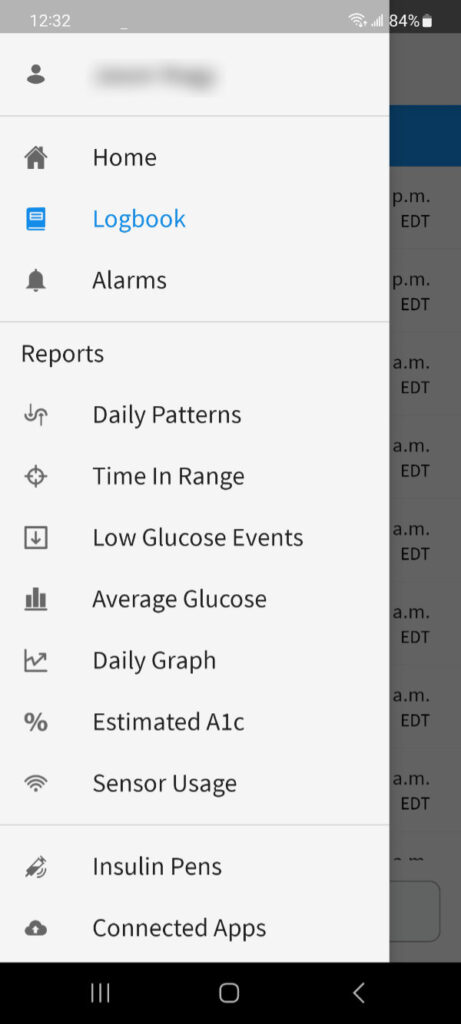
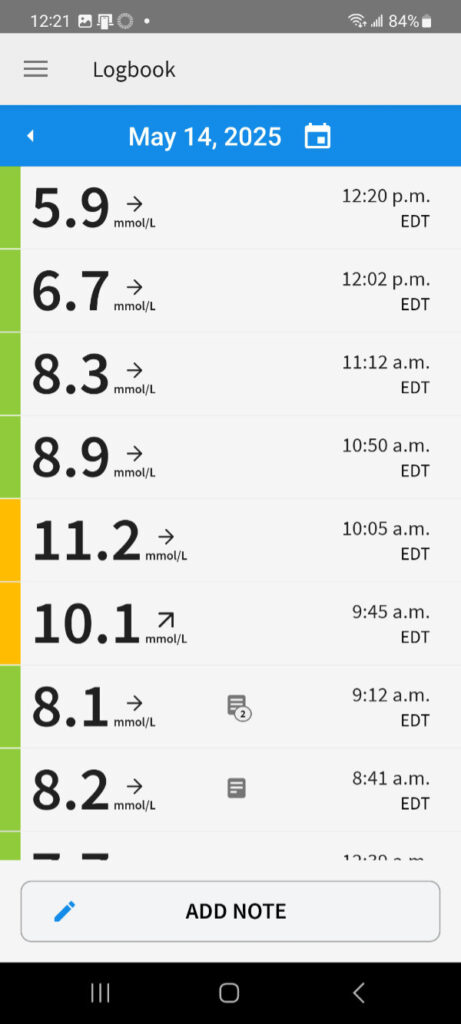
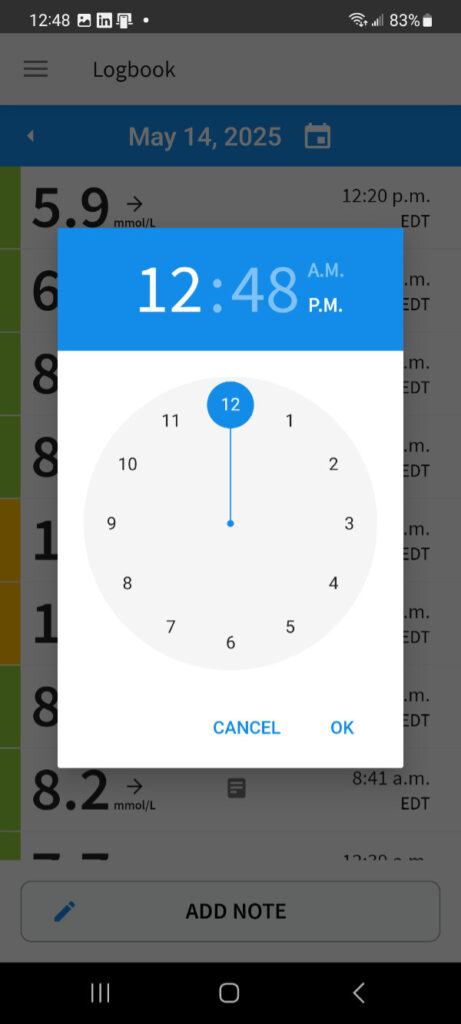
To review your daily log, you can click on the navigation menu in the top left and see the menu below. Select Logbook and you will see your daily log with notes highlighted. These logs are based on your scanning frequency. You can move ahead and backwards in days using the little arrows by the date. Clicking on your notes will show you your notes. You can also add a note for a specific time of the day you are looking at.
Please note: although we use the FreeStyle Libre 2 device in our plans we are in no way affiliated or in any business arrangement with the brand or Abbott. The sensor housing, FreeStyle, Libre, and related brand marks are marks of Abbott.